Planning Messages
It can be an exciting time redesigning your workplace documents and messages. It could also be a little daunting to know where and how to start.
We have a few ideas on how to plan your messaging project & over the years our support teams have helped many organisations with their messaging projects.
A 5 step approach in designing your messages allows you to analyse, design, develop, implement and evaluate each message. We have provided some tips and suggestions along the way.

Analyse
The analysis phase helps establish the content you require for each message. Involve key members of staff and brainstorm to identify content requirements.
Decide
Decide the message types your organisation requires. There are 17 message types available to message inTourplan from agent and supplier correspondence and financial documents to supplier requests and everything in-between. Assess what you need and work on one document at a time...
Involve
Its important to have input from specialists in your organisation to outline key content requirements for each message. Involve Subject Matter Experts (SME's) from your organisation.
-
Supplier messages - it might be useful to have a product manager or operations manager as an SME.
-
Financial documents - may be best suited to an accounts team member as an SME.
Decide on the message types your company requires, involve your SME's in each step.
Brainstorm
Perhaps have a brainstorm meeting with SME's. List or note down key information which needs to be included in each message. Including how the message is to be sent, is there a requirement to email the message from Tourplan?
This step can help to provide a testing check-list to ensure required elements are included in each message and it will also help in the following steps when identifying the required substitution codes.
This example itemises a brainstorm for an itinerary document for accommodation services.

Design
This is where you can get creative! From the listed content begin to design the look of the document. You may find it useful to conceptualise how the document will look when the message is generated.
Conceptualise
We have a few of suggestions as to how you can create a concept document.
-
Write or type the content on a piece of paper, cut each portion; dates, supplier names, addresses, product names, inclusions, note information, images, pricing, etc. Now you can place the cut out content onto a piece of paper and play with the layout and look.
-
Create the document in Word (without placing the content in a table). Design what you would like the end result to look like. Type dates, supplier names, addresses, product names, inclusions, note information, images, pricing. Include your logo, contact information and terms and conditions required etc.
-
You may already have documents which are used in your company, you could base your Tourplan message formats on current documentation layouts.
Generating a concept document has great benefits for executing the overall design of each message. The more detail you provide in your concept allows for greater efficiency when locating substitution codes.
Here is an example of an Agent Booking Message concept.

Identify
From brainstorming and conceptualising your document design you can now begin to identify where the information is saved within Tourplan and the corresponding substitution code. It may be useful to list the content from your brainstorm and note where the field information is stored in Tourplan. If you are unaware of Message Template Header/Service/Footer elements we suggest you read up on this information first.
Additionally if the message is to be emailed, include email requirements in your analysis - which contact type is required? and are email addresses recorded in your system?
Once you have identified where in Tourplan the information is saved you can refer to our Messaging User Manual for substitution code topics - published and grouped into where the information is stored in Tourplan. Each topic has a list of substitution codes and the corresponding field name to help you identify the code required.
Parameters appended to the substitution codes will help output the required content from Tourplan.
Develop
Once you have a prototype and have identified the required substitution codes it's time to format & style your message template. You can begin formatting the document into a Microsoft Word table. The suggestion we have here is to refer back to your concept document.
Format
Message templates are formatted in a Microsoft Word table. From the design phase work out the maximum number of columns you need - as you will probably merge table cells in some sections.
Example design - accommodation service:

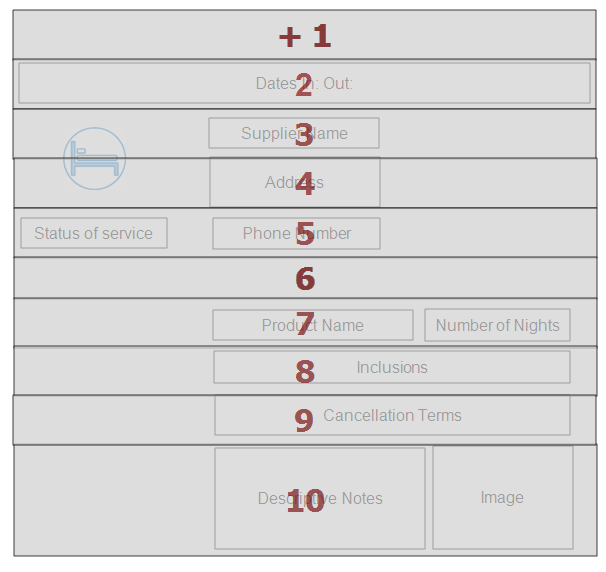
Number of columns in this example = 3
Number of rows for this example = 10
We've inserted a blank table 3 columns, 10 rows for an accommodation service example.

We can now align column cells, merge or split cells, begin to format the message content within the table.

You should be able to identify fixed text components of the message content vs substitution code requirements.
-
Start with the header of your message, what information is required for your header? Start to insert text into the table cells.
-
Then work through the Service/Lines section, working with message formats to itemise the service layout requirements. This maybe where you need to merge or split cells to align your text.
-
Now the footer of your message.
-
Finally if the message is to be emailed, enter your email command tags. (Outside of the table)
Be mindful of the information the substitution code will generate. Is there enough space in the cell or will the text wrap within the cell? Also consider the alignment you want for the data being output and set that in the cell accordingly.
Don't be too concerned if the substitution code wraps in narrow financial columns. So long as when the message is generated there is enough room to extract values.
Style
Now you can make it look pretty... apply Microsoft Styles to the document, perhaps add table boarders to section your message.
NOTE: You may be working with a pre-approved style guide which you need to adhere to company fonts, font size, logo size and placement, or a company colour pallet. Remember Microsoft Word fonts, font colours and styles format how the message will generate from Tourplan.
Example Itinerary:
|
|
In this example table cell background colours are applied, font colour and a larger font size for Itinerary dates sections the message for the reader. Coloured icons are applied for different service types. An Italic font is used for the display of accommodation room types. |

Implement & Evaluate
This phase is also known as the testing phase.
Upload
Upload the message template as a Message Definition in Tourplan. Create a test booking with multiple service types and generate your message.
It's unlikely you will get the layout right the first time. You will probably need to make tweaks to the template until you are happy with how the message is displaying.
Test
Test with multiple bookings, different; dates, supplier names, product name, and inclusions. This will ensure the layout is fit for purpose for all booking variations.
Send the generated message to your SME to make sure its received, and if the layout is displaying as intended for print and digital display.
Evaluate
Initial evaluation ensures the message is generating the right content including eliminating any spacing and formatting issues. Continue editing, testing and evaluating until you have the message operating as intended.
Edit
Message template edits occur in Microsoft Word. Each time a template is edited in Microsoft Word it will need to be re-uploaded to Tourplan's Message Definitions for re-testing with a booking.
Approve
Once you're happy with the message generation, approve the document for use within your organisation.
Ongoing Evaluation
The evaluation phase of messaging can occur regularly - is the message still fit for purpose? have you implemented a new feature in Tourplan? could this information be used in messaging communication?
If you're editing a message template we suggest you revisit the develop, implement phases each time to ensure the message is operating as expected.
Considerations
There are a number of considerations yourself and SME's should discuss to enable an efficient messaging design project.
-
Who is the audience for each message? - which message type is required and which application will the message need to be generated from?
-
What information needs to go on each message?
-
Where should information be placed to generate the right field information?
-
How will the user send the message? Are email addresses stored in Tourplan and what contact type parameters will need to be applied.
What are the non negotiable details for your documents?
Information such as:
-
Your contact information
Your name, address, phone number, email address, and the name of your company.
-
The client's information
Including pax name/booking name, and any pax profile information if applicable. Perhaps agent names and contact details could be important to have.
-
Description of service
Detail booking information, be sure to include the dates of service and FCU and SCU values. Per person pricing or total booking values. Do you use optional services, how do you want to display alternative options to up sell?
-
Payment methods
How do you want to communicate payment methods? What financial information needs to be included; bank account information, due dates, and deposit requirements. You may want to look at providing a QR code for clients to use...
-
Reference numbers
Ensure your invoice number and booking reference are noted for financial documents. Supplier messages may require rate codes, or supplier confirmation numbers.
Display your brand
This is the chance to show case your brand to your clients. When you create a message document, logos should be displayed in a prominent location.
Your logo provides the receiver with knowledge of who the message is from at a glance. Agent logos can also be used in an agent note field - a substitution code can be used to generate your agents logo on to your documentation.
Microsoft design elements makes your document look professional and selection of your company colours helps align your company brand identity.
Format for print and digital
Agents may want to print your documents for their clients, ensure your testing includes print and digital message generation. Check message print and digital displays properly when sent before giving the message sign off.
Images
Images can look smart and engaging on client facing messages such as itineraries. Images can be saved within supplier or product notes and substitution codes used to extract images from Tourplan. Saving of images within the note should however be re-sized (in software outside of Tourplan) to a uniform pixel size to ensure your generated message display is not compromised by a large image.
Including descriptions for products
Notes can store supplier, and product descriptions, cancellation information, check in & check out times. The formatting of your notes needs to be considered.
Friendly sign off “Thank you!"
Consider you sign off, substitution codes can be used to generate the name of the user sending the message or a signature created extracting the user contact fields from Tourplan.
Finally...
Knowledge of Microsoft Word is essential to completing this project. The more knowledge you have on Word tables, cell alignment, merging/splitting cells and formatting in Microsoft Word the more equipped you'll be to design your messages. Tourplan messaging design allows your messaging to be as simple or as complex as necessary.
Microsoft Word does have some template designs which could help, or we have downloadable templates to help you get started.